Integrations
Findings are only useful once they are in the system your team already works from. Open Integrations under Config to connect Vooki Pro to your tracker and your chat.
Ticketing
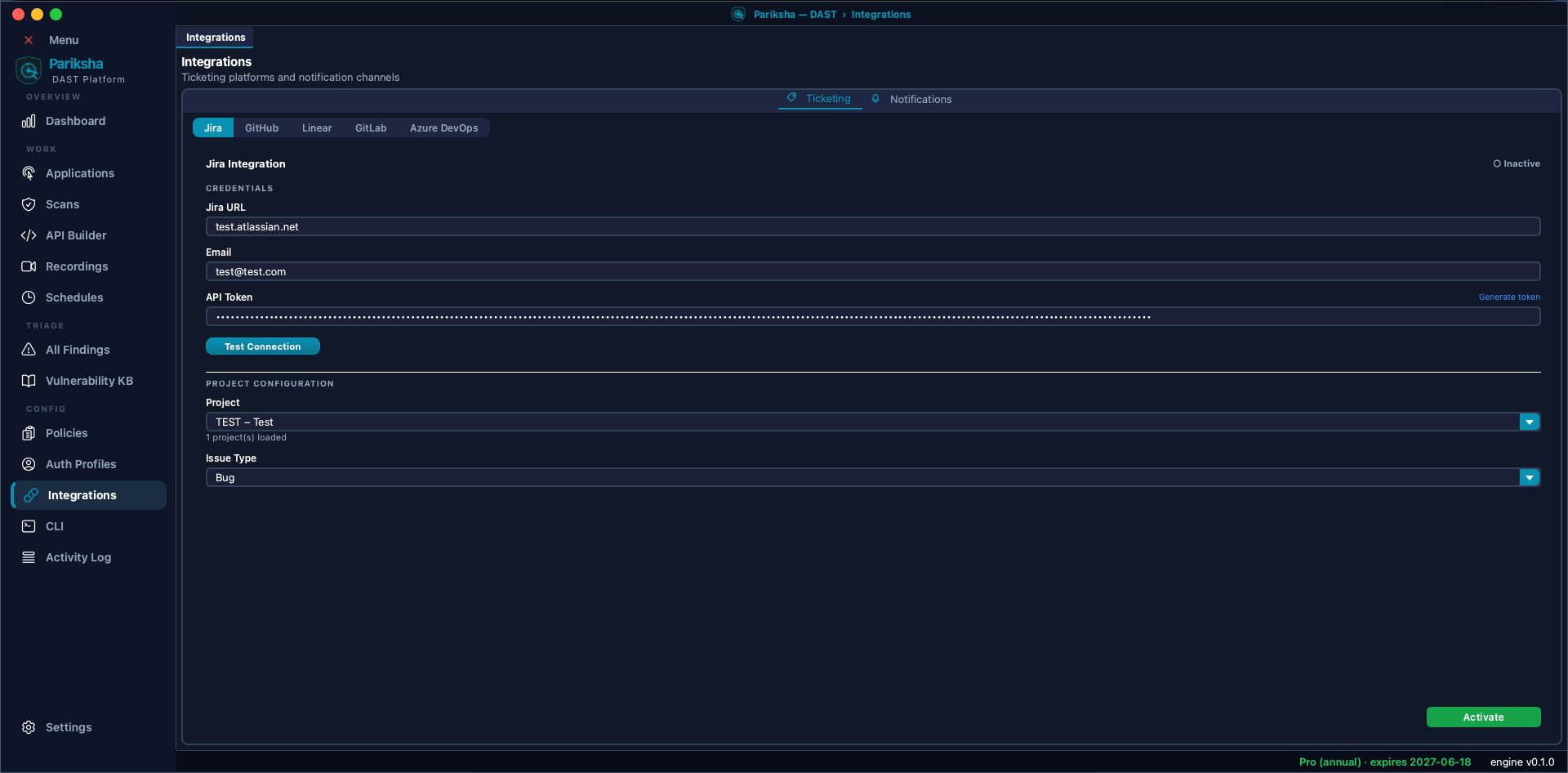
Five platforms are supported: Jira, GitHub Issues, Linear, GitLab and Azure DevOps. Each has its own tab. The pattern is the same in all five:
- Enter the connection details and credentials.
- Click Test Connection. Vooki Pro fetches your projects, repositories or teams so you can pick the destination from a list rather than typing an ID.
- Choose the destination and the issue or work item type.
- Save, and mark that platform active.
Once connected, you can raise a ticket from any finding. The ticket is created with the title, severity, affected URL, description, remediation guidance and the request and response evidence already filled in.
Jira
- Jira URL — your site, for example
https://yourcompany.atlassian.net. - Email — the account the API token belongs to.
- API token — created in your Atlassian account settings.
- Test the connection, then pick the project and the issue type (Bug, Task, and so on).
GitHub
- Personal access token with permission to create issues on the repositories you care about.
- Test the connection, then choose the repository from the loaded list.
Linear
- API key from your Linear settings.
- Test the connection, then pick the team that issues should be filed against.
GitLab
- GitLab URL —
https://gitlab.comor your self-hosted instance. - Access token with issue-creation scope.
- Test the connection, then choose the project.
Azure DevOps
- Organisation and project.
- Personal access token with work item permissions.
- Choose the work item type to create.
Notifications
- Slack — paste an incoming webhook URL from your Slack app configuration. Findings are posted to the channel that webhook targets.
- Generic webhook — give any HTTPS endpoint and Vooki Pro will POST the finding to it, so you can route into whatever you already run.
This is what makes scheduled scans worth having: an overnight scan that finds something Critical can say so in a channel before anyone opens the application.
Practical Advice
- Triage before you file. Mark false positives first, or you will create tickets your team has to close by hand.
- Use a scoped token. Give the integration token only the permissions it needs — creating issues, not administering the repository.
- Notify on severity, not on everything. A channel that receives every Info finding is a channel people mute.