Scheduled Scans
A scan you have to remember to run is a scan that stops happening after three weeks. Schedules keep regression coverage going on their own.
Why Schedule
- Catch regressions. A nightly scan of staging tells you which of yesterday's merges reintroduced something.
- Scan when nobody is watching. Deep policies are slow and noisy. Run them at 2am against an environment nobody is using.
- Produce evidence on a cadence. Auditors like to see that testing happens regularly, not just the week before the assessment.
Creating a Schedule
Two routes, both ending in the same place:
- From the scan wizard — on the Schedule step, choose to schedule recurring runs instead of (or as well as) running now. Everything you configured — target, discovery, auth, policy, scope — is carried into the schedule.
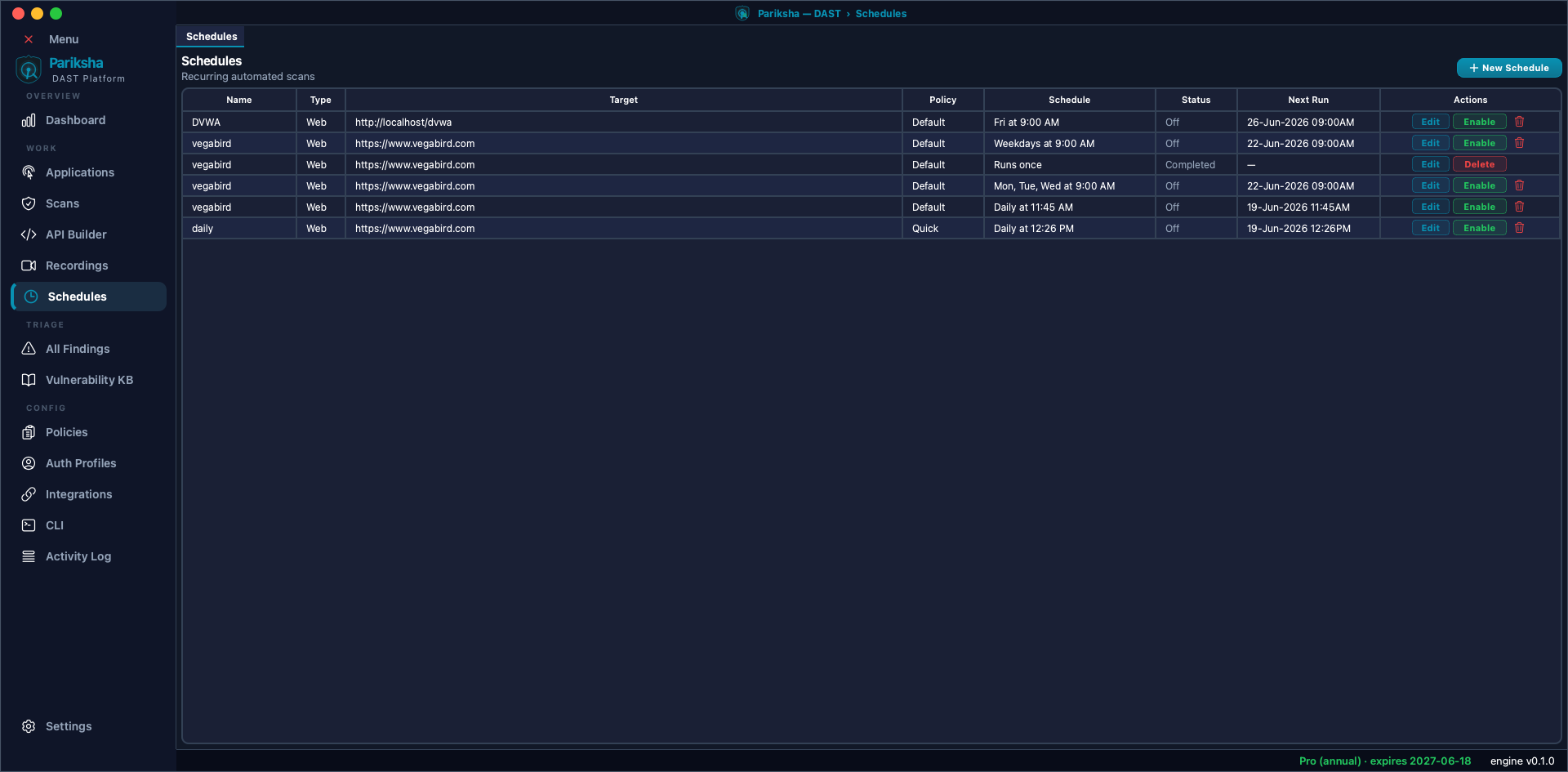
- From the Schedules screen — open Schedules in the sidebar and create one directly.
Recurrence Options
- Hourly or an interval in hours — for fast-moving environments.
- Daily — the usual choice, run outside working hours.
- Custom cron expression — for anything more specific, such as weekdays only, or the first of the month.
- One-off at a chosen date and time — a single future run that does not repeat.
Running Without the App Open
Scheduled scans do not need the Vooki Pro window. They run in a small background scheduler that your operating system starts for your user account — close the app and the scans still happen at their scheduled times. The window is where you create schedules and read results; it never fires one itself.
Nothing runs while the machine is switched off or asleep. What happens to those occurrences afterwards is covered in Missed Runs below.
It is set up per user and needs no administrator rights, because everything it reads — your database, your licence and your settings — already belongs to your account:
| macOS | Linux | Windows | |
|---|---|---|---|
| Mechanism | launchd LaunchAgent | systemd user service | Task Scheduler task |
| Starts | At sign-in | With your session | At sign-in, plus a 5-minute watchdog |
| Screen locked | Runs | Runs | Runs |
| Signed out | Stops | Stops, unless you turn on "Keep running after I sign out" | Stops |
| After a restart | Starts again at your next sign-in. | ||
The Schedules screen shows a Background scheduler card with its state — Running, Starting…, Stopped, Not enabled, Turned off or Error — and a button to turn it on, start it or repair it. Vooki Pro registers it for you when you save a schedule, so most people never touch the card.
Missed Runs
An occurrence counts as on time if the scheduler gets to it within 15 minutes — enough to cover a reboot, a short sleep or a restart of the scheduler itself. Anything later was missed, and what happens next is your choice under Schedules › ⋯ › If a scheduled time is missed:
- Run it once when the computer is back (the default) — the most recent missed occurrence runs once as a catch-up, as long as it is less than 24 hours old. Earlier ones are recorded, never replayed, so you never get a backlog of scans firing at once.
- Skip it — nothing late runs; the schedule simply waits for its next time.
Either way the schedule realigns to its next future occurrence, so an old one can never fire twice. A one-off schedule that was missed is marked Missed rather than Completed, and turns itself off.
Managing Schedules
The Schedules screen lists every schedule with its recurrence, its next run time and how its last run ended — Completed, Failed, Missed, Cancelled, Interrupted or Blocked. From there you can edit a schedule, disable it without deleting it, or remove it altogether.
Scheduled scans appear in Scans as they start, and their findings flow into All Findings and the Dashboard trend like any other scan. You can Cancel a background scan from there; Pause applies only to scans the window itself is running.
Blocked means the run never started because a check failed before it — most often an expired licence, or a plan that does not include scheduled scans. The reason is on the row, and the run is recorded in the Activity Log rather than being silently skipped.
Getting Notified
A scheduled scan nobody looks at is not much better than no scan. Connect Slack or a webhook under Integrations so a critical finding reaches the team without anyone having to open the application.
Practical Advice
- Schedule against staging, not production, unless you have built a custom policy specifically for it.
- Check the auth lifetime. A hardcoded token that expires next Tuesday means every scheduled scan after Tuesday runs unauthenticated and quietly finds nothing. Use OAuth2 client credentials where you can.
- Do not stack schedules. Two Deep scans firing at the same hour against the same host will fight each other for bandwidth and produce timing-based false positives.
- Start with Standard nightly and add a weekly Deep run, rather than running Deep every night.