Browser Recordings
Some applications simply cannot be crawled. A single-page application builds its routes in JavaScript, a multi-step checkout only exists if you walk it, and anything behind a complex login is invisible to a scanner that was handed a URL and nothing else. Recording solves all three.
Why Record
You browse the application once, the way a user would. Vooki Pro watches the traffic and keeps it. That capture then becomes the seed for a scan — the scanner knows about every endpoint you touched, and it has your authenticated session.
Recording a Session
- Open Applications, select the application you want to record, and start a recording. It opens as a drill-down tab.
- Vooki Pro launches a real Chromium window. Log in and walk through the flows that matter — the dashboard, the search, the checkout, the admin screen.
- As you browse, the captured URLs appear live in a host and path tree in the Vooki Pro tab.
- Click Stop when you are done, or just close the Chromium window.
Recording only captures traffic. Nothing is attacked while you browse — the scan comes later, and only when you launch it.
Reviewing the Capture
Pick any row in the tree to see the full request and response detail for it. This is worth a minute before you scan: it tells you whether the recording actually caught the authenticated calls you were after, or whether you missed a flow and should record again.
What to Do With It
Once a recording is stopped it is sealed, and the action bar offers what to do next:
- Use it as a web scan — the default. The recording is saved as coverage data that seeds the New Scan wizard, so the scanner starts from real, authenticated URLs instead of guessing.
- Build an API project — turn the captured XHR and fetch calls into a scannable API project, ready to open in the API Builder.
- Create a cookie auth profile — lift the authenticated session out of the recording and save it as a reusable auth profile.
- Discard — throw it away and record again.
In the scan wizard, choose the Hybrid discovery strategy to replay the recording and crawl outward from the URLs it found. That combination gives the broadest coverage on a single-page application.
Importing a HAR File
If the traffic was captured somewhere else — your browser's network tab, a proxy, a colleague's export — use Import HAR on the Recordings screen. The import dialog previews every entry so you can select exactly which requests to keep before they become a recording. You will be asked which application the recording belongs to.
The Recordings Library
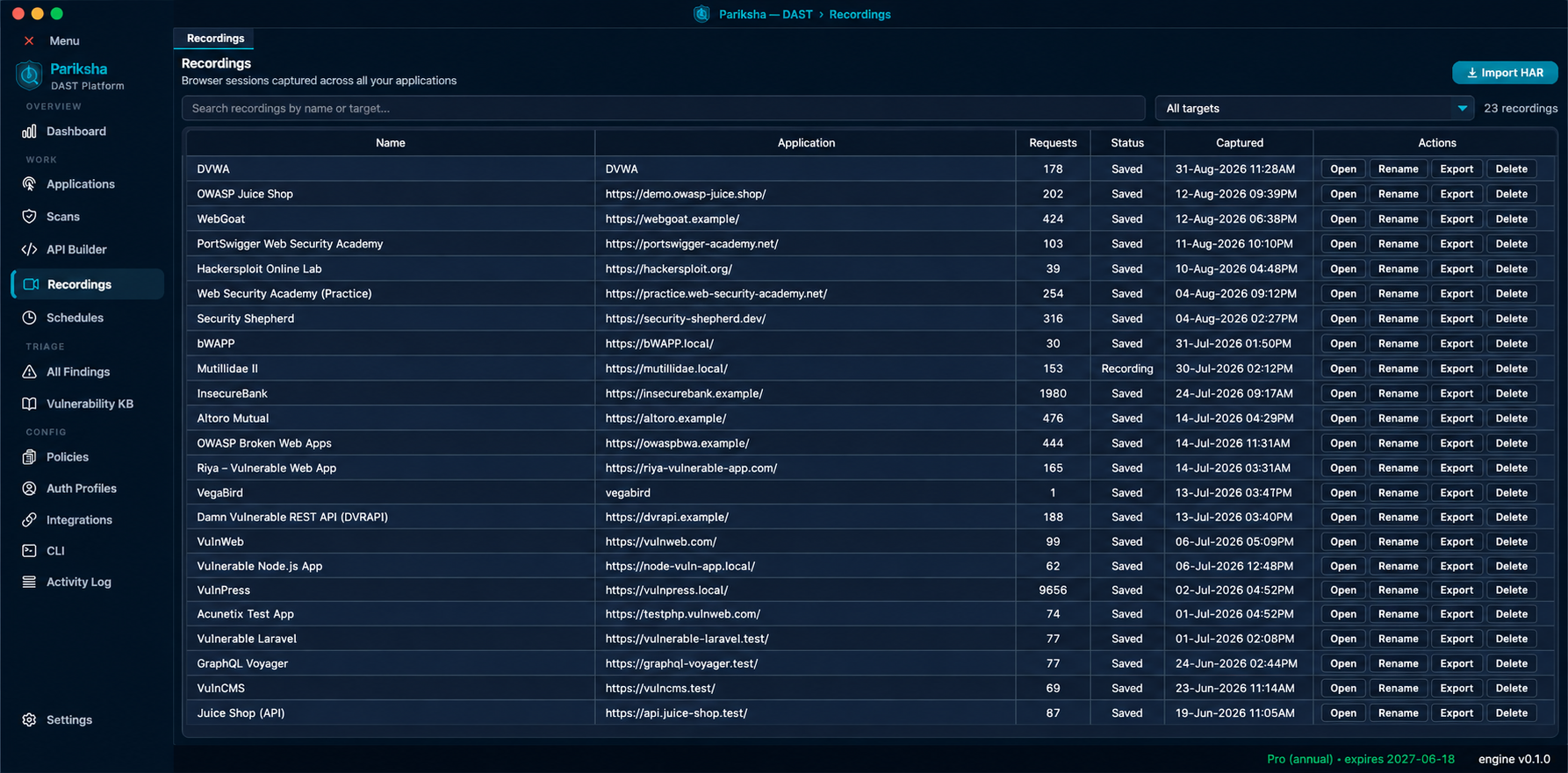
The Recordings screen lists every recording across every application, with
a filter strip and per-row Open, Rename, Export and Delete actions. Export
writes the recording out as a shareable .har file that imports straight back
in. If a recording's original application
was deleted, you can reassign it to another one rather than losing the capture.