Settings & License
Settings is pinned at the bottom of the sidebar, next to the theme toggle. It has five tabs.
Appearance
Vooki Pro ships a dark and a light theme, both built around the product's teal accent. Switch between them here or with the toggle at the bottom of the sidebar. The choice applies immediately across every screen.
General
Application-level preferences — date formatting and other display options that affect how scans and findings are presented.
AI Model
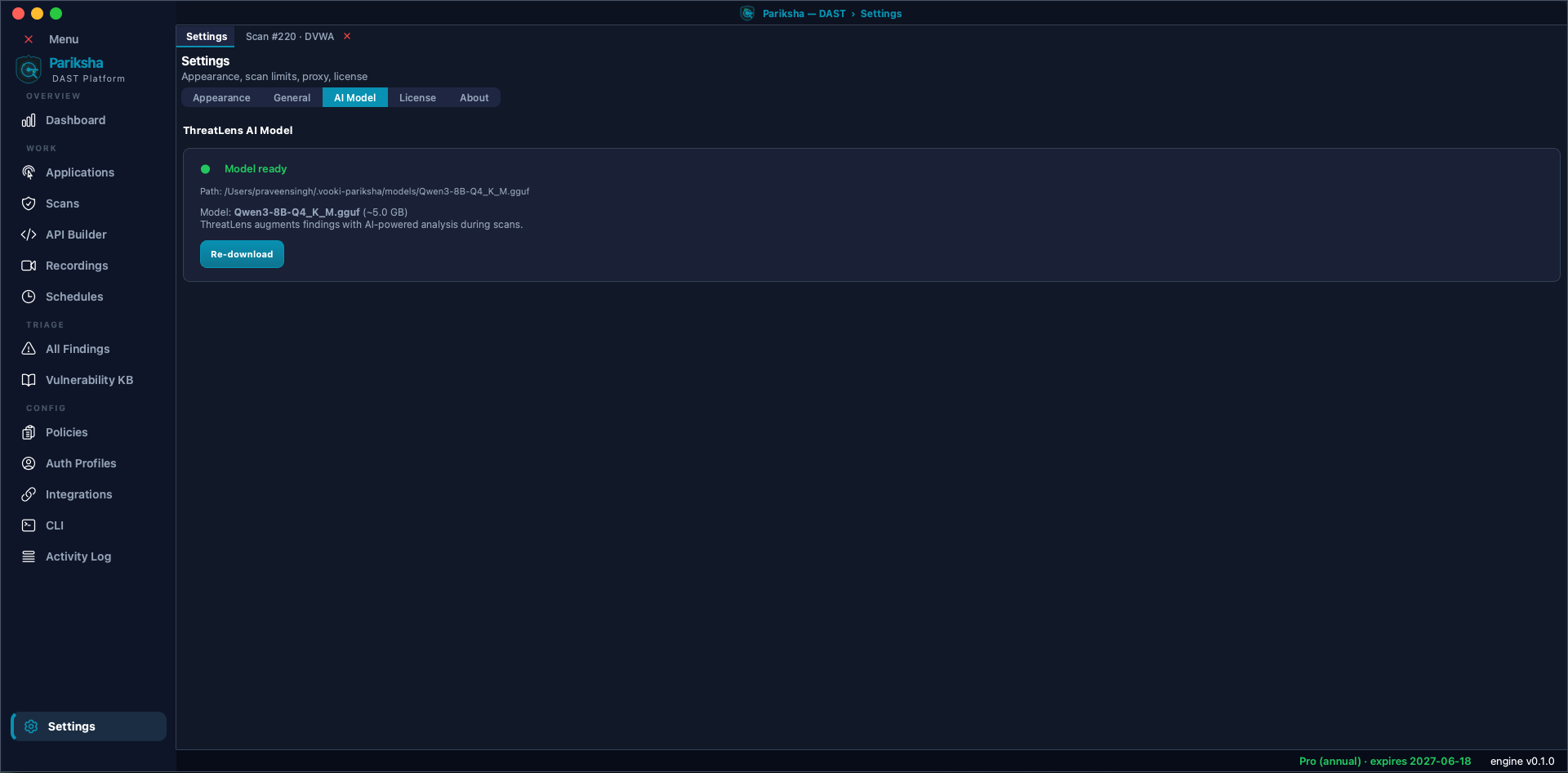
ThreatLens is the local AI analyst. It runs on your own hardware and augments findings during a scan: demoting likely false positives, and detecting exposed secrets and personal data that pattern rules miss.
- The model is roughly 5 GB and is downloaded separately from the installer. It is required — download it before your first scan.
- Click Download to fetch it. The download is resumable — if it fails or you close the app, starting it again picks up where it left off.
- It is stored in
~/.vooki-pro/models/and used from there. - Until the model is downloaded, the tab shows Model not found — AI analysis disabled and scans run with the rule-based checks alone, without AI triage.
- Running the model needs about 5 GB of RAM while a scan is active, which is why 16 GB is the minimum for the machine as a whole; 32 GB is recommended if you can spare it, especially on larger targets.
The model runs entirely on your machine. Requests, responses and findings are never sent to a remote service for analysis. The only time the model touches the network is the one-off download.
License
Shows your current licence — product, variant, status and expiry — and lets you activate a new key.
- Paste your key and click Activate. Vooki Pro contacts the licence server to verify it.
- Installs are unlimited — a licence is counted in domains, not machines, so activate it on as many devices as you need. The Installs row shows how many are active. Deactivate This Device removes this machine's activation, and you would need the key again to use it here — trial licences cannot be deactivated.
- Vooki Pro re-validates quietly in the background about once a day. If it cannot reach the server, it keeps working on the last valid token — for about a week after the last successful check — rather than locking you out mid-scan. After that it needs to reach the server once to refresh.
- A trial licence unlocks every feature for 7 days.
- Licences are annual and licensed per domain — 1, 2 or 3 domains self-serve, or a custom domain count for larger needs.
Beyond the trial, feature availability follows your licence — the REST API scanner, scheduled and recurring scans, custom scan policies and CI/CD export are each licensed features. Contact support@vookify.com about upgrading.
Licensed Domains
Vooki Pro is licensed per domain. Your plan grants a number of domain slots, and a target has to fall inside one before it can be scanned — from the app, from a schedule or from the CLI.
- One slot covers a whole domain. A slot on
example.comalso coversapp.example.com,staging.app.example.comand any other subdomain, at any depth. - Local and private targets share a single slot —
localhostand addresses that only resolve inside your own network. - Assignments are permanent for the life of the subscription. A slot cannot be moved to another domain later, which is why Vooki Pro asks you to confirm before spending one.
The Licensed Domains card lists the slots you have assigned and how many remain. Refresh re-reads them from the licence server — useful when an upgrade has just gone through — and Upgrade plan moves the subscription to a tier with more slots.
Start a scan against a domain that is not assigned yet and Vooki Pro offers to spend a free slot, telling you how many are left. Accept and the scan continues. If every slot is already assigned, the scan does not start — upgrade the plan to cover a new domain.
The command line never spends a slot on its own, because the assignment is permanent. An unlicensed target stops
the run with exit code 1; pass --bind-domain on that first run
to assign the slot deliberately. See
CLI & CI/CD → Licensed Domains.
About
Version and build information — worth quoting in any support request.
Where Your Data Lives
Everything Vooki Pro keeps is under ~/.vooki-pro/:
- The project database — applications, scans, findings, reports and the audit log — stored in SQLite.
models/— the downloaded AI model.logs/— includingcrash.log, which records the full traceback of any unhandled error.- The encrypted licence file.
Back up that folder and you have backed up your scan history. Delete it and Vooki Pro starts fresh.
Troubleshooting
- The app closed unexpectedly. Check
~/.vooki-pro/logs/crash.log— the full traceback is written there. Send it with your support request. - Out of memory during a scan. The AI model needs about 5 GB resident. Close other applications, make sure no earlier instance of Vooki Pro is still running, and check the machine has the full 16 GB Vooki Pro expects — if this happens often, 32 GB gives more headroom.
- Activation fails. Confirm the machine can reach the internet and that the key was typed exactly as issued. Installs are unlimited, so a key being active on another machine is never the cause; an expired subscription is worth checking.
- The scan finds nothing behind the login. The session almost certainly expired or the scanner logged itself out. See Auth Profiles.
- Still stuck? Email support@vookify.com or ask in the community forum.