Installation
Vooki Pro is a desktop DAST application. The scan engine, the vulnerability database, the AI analysis and your findings all run on your own machine — there is no cloud account to create and no scan data leaves your network.
System requirements
| Component | Minimum | Notes |
|---|---|---|
| Operating system | Windows 10 (64-bit) macOS 11 Linux, glibc 2.28 |
Apple Silicon and Intel share one disk image. Linux ships as an AppImage — Ubuntu 20.04+, Debian 11+, Fedora 32+. |
| RAM | 16 GB 32 GB recommended |
ThreatLens' on-device AI model uses roughly 5 GB of RAM during a scan. 16 GB is the minimum supported configuration; 32 GB is recommended for smoother performance on larger targets or when running other applications alongside Vooki Pro. |
| Disk space | 7 GB | 2 GB application, 5 GB AI model. Allow 15 GB of headroom for scan data and reports. |
| Network | One-time | Needed once to activate the licence and once to fetch the model. Scanning itself is fully offline. |
Download
Request a 7-day trial and tell us which build you need — we'll email you a licence key and a download link. Buying an annual licence is handled through Lemon Squeezy, which manages checkout and installer access for your platform. See Get Vooki Pro for both paths.
| Platform | File | Signing |
|---|---|---|
| macOS | Vooki-Pro-<version>.dmg | Signed and notarized |
| Windows | Vooki-Pro-<version>-Setup.exe | Signed installer |
| Linux | Vooki-Pro-<version>-x86_64.AppImage | Self-contained |
Install
Pick your platform. The choice is remembered across every page of the docs.
Open the .dmg and drag Vooki Pro.app into your Applications folder.
On first launch, right-click the app and choose Open so Gatekeeper lets it through.
Double-click the .exe, choose an install location and follow the prompts.
The installer creates a Start Menu entry and a desktop shortcut.
The AppImage is self-contained — there is nothing to install. Mark it executable and run it:
chmod +x Vooki-Pro-<version>-x86_64.AppImage
./Vooki-Pro-<version>-x86_64.AppImage
Keep it anywhere — ~/Applications/ or /opt/ both work.
If the AppImage refuses to start with a FUSE error, install FUSE 2 —
libfuse2 on Ubuntu and Debian, fuse-libs on Fedora. It is no longer
present by default on some newer distributions.
Everything sits under ~/.vooki-pro/ — the project
database, the downloaded AI model, your licence file and crash logs.
Activate your licence
-
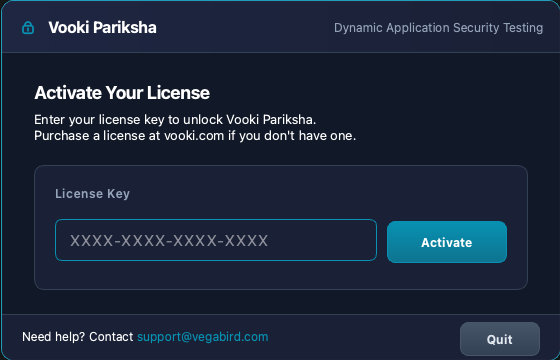
Launch Vooki Pro
If no licence is present you are asked to activate one. You can also reach this any time from Settings → License.
-
Paste your licence key
Take the key from your order email and click Activate. Vooki Pro contacts the licence server once, then works offline.
-
Using it on another machine
Installs are unlimited — a licence is counted in domains, not machines, so just activate the same key on the new one. If you are retiring a machine, open Settings → License there and click Deactivate This Device to remove its activation.
Vooki Pro re-validates in the background about once a day. If it cannot reach the server it keeps working on the last valid token.
Download the AI model Required
ThreatLens is the local AI analyst. It reviews findings on your machine — demoting likely false positives and spotting exposed secrets and personal data the rule-based checks miss. It is about 5 GB and downloads separately from the installer.
AI analysis is part of every scan. Until the model is present, findings will not carry the triage that Vooki Pro's reports and false-positive handling assume.
Open Settings → AI Model
The tab shows the current state and the download control.
Click Download
The transfer is resumable — if it is interrupted, start it again and it picks up where it left off.
Confirm it landed
The model is saved to
~/.vooki-pro/models/and used from there on. It never sends anything to a remote service.
Verify the install
The bundled CLI reports its version, and the licence state of this machine:
"/Applications/Vooki Pro.app/Contents/MacOS/vooki-pro-cli" --version
"/Applications/Vooki Pro.app/Contents/MacOS/vooki-pro-cli" license status& "C:\Program Files\Vooki Pro\vooki-pro-cli.exe" --version
& "C:\Program Files\Vooki Pro\vooki-pro-cli.exe" license status/opt/vooki-pro-cli/vooki-pro-cli --version
/opt/vooki-pro-cli/vooki-pro-cli license statuslicense status prints the plan, expiry, how many licensed domain slots are in use and
whether CI/CD export is included:
  Status    : active (device activation)
  Plan      : Yearly - 3 Domains
  Expires   : 22 Sep 2027
  Domains   : 1 of 3 used - example.com
  CI/CD export (SARIF): included
The AI model is a separate download, covered above — Settings → AI Model shows whether it is present.
Uninstall
| Platform | How |
|---|---|
| macOS | Drag Vooki Pro.app from Applications to the Trash. |
| Windows | Remove the Vooki Pro entry from Settings → Apps → Installed apps. |
| Linux | Delete the .AppImage file. |
To clear scan history, reports and the downloaded model as well, delete
~/.vooki-pro/.